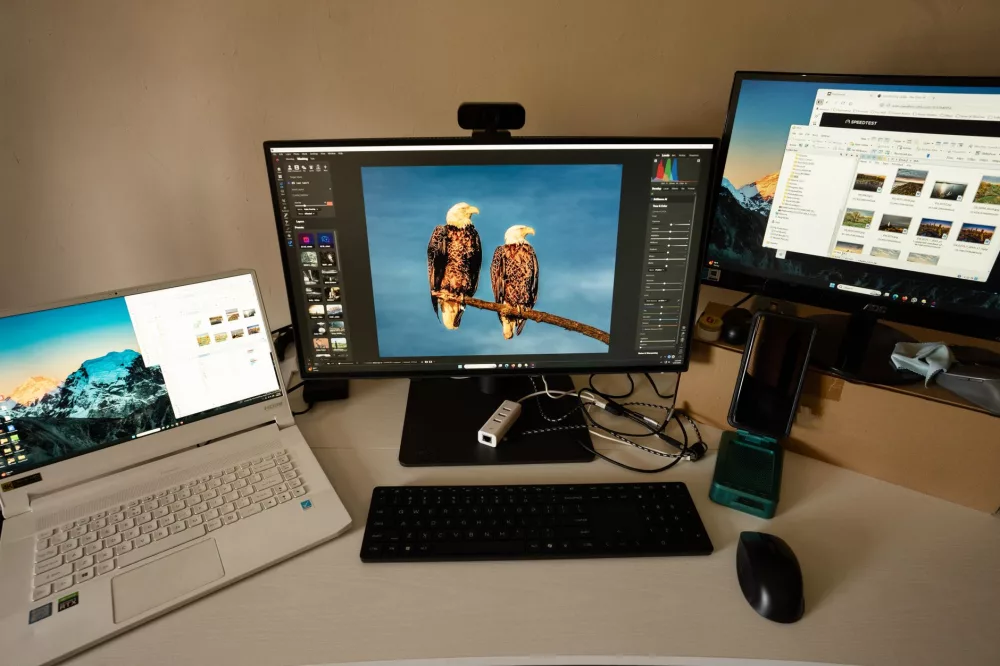
When it comes to photo editing, especially on a mobile device, Snapseed often tops my list of recommendations. It’s got an incredible set of features, it’s remarkably intuitive, and best of all, it’s completely free. But what if you, like me, often find yourself wishing you could use its powerful tools on a bigger screen, with the precision of a mouse and keyboard? We're talking about Snapseed for PC here. It's a question I hear quite a bit, and honestly, it’s a valid one!
I mean, think about it. You’ve got this fantastic mobile app from Google that offers non-destructive editing, RAW file support, and a plethora of sophisticated tools. It's like a pocket-sized Photoshop Express, but often easier to navigate for quick, impactful edits. So, naturally, the desire to port that experience over to a desktop or laptop is strong.
The Truth About Snapseed for PC
Let's get straight to the point: there isn't an official, native version of Snapseed designed specifically for Windows or macOS. Google, the developers behind Snapseed, has always positioned it as a mobile-first application. This might come as a bit of a disappointment for some, but don't lose heart just yet! I’ve got some excellent news if you’re still keen on getting that Snapseed experience on your computer screen. You absolutely can, just not in the way you might initially expect.
Unlocking Snapseed on Your Desktop: Enter Android Emulators
The secret sauce to getting Snapseed running on your PC lies in a technology called an Android emulator. If you’re not familiar with them, an emulator is essentially a piece of software that allows your computer to mimic another system, in this case, an Android operating system. It creates a virtual Android device right on your Windows or Mac machine, letting you download and run Android apps as if you were using a smartphone or tablet.
I've personally tried a few of these, and they've come a long way. They're pretty robust now, offering decent performance and compatibility with most Android apps, including Snapseed. It's an ingenious workaround that brings the full functionality of the mobile app to your desktop environment.
Choosing Your Android Emulator: My Top Picks
There are several reliable Android emulators out there, each with its own quirks and benefits. When I’m setting up one of these, I usually lean towards options that are well-supported, relatively lightweight, and straightforward to install. Here are a couple I've had good experiences with:
- BlueStacks: This one is probably the most popular and widely recognized Android emulator. It’s been around for ages and generally offers a very smooth experience. It's often my first choice because of its broad app compatibility and user-friendly interface.
- NoxPlayer: Another solid contender. NoxPlayer is known for being a bit more performance-oriented and offers some gaming-specific features, but it works just as well for productivity apps like Snapseed.
- LDPlayer: This one’s gaining traction, especially among gamers, but its lightweight nature also makes it great for running other apps efficiently.
For this guide, I'll walk you through the process using BlueStacks, as it's what I find most people are comfortable with and generally offers the best all-around experience for non-gaming apps.
Step-by-Step Guide: Installing Snapseed on Your PC with BlueStacks
Alright, let’s get you set up! This process is surprisingly straightforward, even if you're not a tech wizard. Just follow these steps, and you'll be editing in Snapseed on your PC in no time.
Step 1: Download and Install BlueStacks
- First things first, head over to the official BlueStacks website. You'll usually see a prominent download button for the latest version.
- Once the installer downloads, run it. You’ll be prompted to accept the terms and conditions and choose an installation directory. Just follow the on-screen instructions. It’s a pretty standard software installation, so you shouldn’t run into any major hurdles.
- The installation might take a few minutes, depending on your internet speed and system specifications, as it downloads and sets up the necessary files.
Step 2: Set Up Your Google Account
After BlueStacks is installed and launches for the first time, it’ll behave much like a brand-new Android device. This means it'll ask you to log in with your Google account. This is crucial because it gives you access to the Google Play Store, which is where we'll get Snapseed. If you don't have a Google account, you can create one during this step.
Step 3: Download Snapseed from the Google Play Store
- Once you're logged into your Google account within BlueStacks, you'll see the familiar Android home screen. Look for the Google Play Store icon and click on it.
- In the Play Store, use the search bar at the top to type in "Snapseed" and hit enter.
- You'll find the official Snapseed app in the search results. Click on it, then click the "Install" button.
- The app will download and install, just like it would on your phone or tablet.
Step 4: Launch and Use Snapseed on Your PC
Congratulations! You've successfully installed Snapseed. Now you can find its icon on the BlueStacks home screen. Click on it to launch Snapseed. You'll notice it functions exactly as it does on your mobile device, but now you have the benefit of a larger display, mouse precision, and keyboard shortcuts.
To open images, you might need to understand how BlueStacks accesses your PC's file system. Usually, there’s an option within the emulator to share folders between your Windows/Mac and the virtual Android environment. This way, you can easily load images from your computer into Snapseed for editing.
Why Bother with Snapseed on PC via Emulator?
You might be wondering, with native PC editing software out there, why go through the trouble of using an emulator? Well, I've found a few compelling reasons:
- Familiarity and Ease of Use: If you're already a Snapseed power user on your phone, transitioning to the emulator means zero learning curve. You know exactly where all the tools are.
- Precision Editing: Trying to make fine adjustments with your finger on a small screen can be tricky. A mouse allows for incredibly precise control, especially with tools like Selective Adjust or the Brush.
- Larger Canvas: A bigger screen simply makes editing more enjoyable and often more effective. You can see details you might miss on a phone.
- Cost-Effective: Snapseed is free! For casual users or those who don't need the advanced capabilities of professional software like Photoshop, this is a fantastic, zero-cost solution.
- Non-Destructive Workflow: Snapseed’s ability to stack edits and re-edit any step at any time is a huge advantage, preserving your original image.
It's important to remember that while powerful, Snapseed is also incredibly user-friendly. I can quickly enhance photos, apply cool filters, correct perspectives, and even do some healing work without getting lost in complex menus.
Potential Downsides and Alternatives
While I'm a big fan of this workaround, it's not without its drawbacks. Emulators can be resource-intensive, meaning they might slow down older or less powerful computers. You might also encounter occasional bugs or performance hiccups, as it's not a truly native application. It's a layer of software running on top of another operating system, after all.
If the emulator route doesn't quite cut it for you, or if you're looking for truly native PC alternatives, here are a couple I'd suggest checking out:
- GIMP: This is a free and open-source image editor that’s often compared to Photoshop. It has a steeper learning curve but offers immense power.
- Photopea: An excellent free, web-based editor that looks and feels a lot like Photoshop. No installation required, just open it in your browser.
- Adobe Photoshop Express / Lightroom Desktop: While some features are behind a paywall, both offer robust free tiers or trials for more serious editing.
- Affinity Photo: A one-time purchase professional photo editor that's often seen as a strong competitor to Photoshop, offering a fantastic set of tools at a fraction of the cost of a subscription.
Ultimately, getting Snapseed on your PC via an Android emulator is a fantastic way to leverage its mobile editing prowess on a larger screen. It provides a familiar, powerful, and free editing experience that many of us have come to love on our smartphones. Give it a try; I think you'll be pleasantly surprised by how well it works!